# Working faster in VSCode
Today I'd like to share some tips and tricks about working faster and more efficient in the most popular modern code editor - **Visual Studio Code**. VSCode's capabilities are very wide, thanks to its settings, flexibility, integrations and extensions, so what I am about to share is only a tip of an iceberg, therefore I recommend you to explore it yourself as much as possible.
---
# Settings
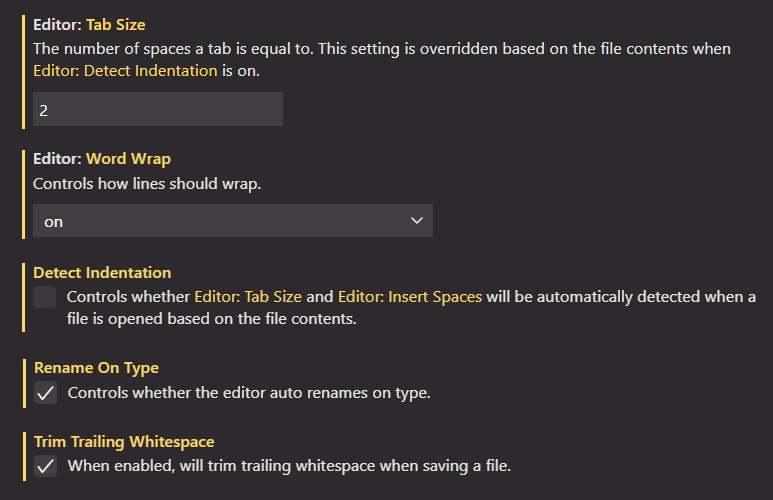
I'm usually fine with most of default settings, but I'd like you to take note of a few (you can quickly access settings by pressing **Ctrl + ,**).
* **Tab Size** - I'm a 2-spaces person for indentation, but I'm not participating in [this holy war](https://javascript.info/coding-style#indents), so choose whatever suits you best.
* **Detect Indentation** - related to the previous one, prevents overriding your rules when opening someone else's files.
* **Word wrap** - setting a default setting. You can also switch word-wrap in the editor by pressing **Alt + Z**.
* **Trim Trailing Whitespace** - as the description says.
* **Rename on Type** - the most important one, acts as the Auto-Rename Tag extension. Helps renaming opening and closing HTML tags (like ``) together.
---
# Extensions
There is a ton of useful and useless extensions for VSCode, here are my personal choices (quick extensions access - **Ctrl + Shift + X**).
* **Prettier** - a code formatter for different languages (JavaScript, TypeScript, JSON, CSS, SCSS, HTML, Vue, Angular etc.) Makes your code prettier. You can format your document by pressing **Shift + Alt + F** (you need to select your default formatter at the first call). By default, the extension uses double quotes in files, but you can change it by searching *'prettier single quote'* in VSCode settings.
* **Beautify** - a Prettier alternative for JavaScript, JSON, CSS, Sass, and HTML. I actually use it together with Prettier, but only for HTML & CSS files (I prefer double quotes in those, and single quotes in JS). Changing settings is less convenient than in Prettier, you need to type them in settings.json file like this:
```JSON
"beautify.config": {
"wrap_line_length": 80,
"indent_size": 2
},
```
* **Code Runner** - I don't use it often, but it runs code snippets or code files in many languages directly in VSCode console (by pressing **Ctrl + Alt + N**).
* **Code Spell Checker** - checks your code for common spelling mistakes and typos (in texts, variable names, etc.) Multiple languages are available, after installing you need to enable them (see the description).
* **CodeSnap** - takes nice screenshots of your code. There are multiple similar extensions like this one.
* **GitLens** - a powerful extensions which makes your work with git easier and more pleasant.
* **Image Preview** - shows a small thumbnail of an image to the left of code lines, when there is an image link in the code.
* **Live Server** - launches a local development server for your code, it's the easiest way to work with your live-updating website without the need to install node.js or anything else.
* **JavaScript (ES6) snippets** - there are many snippet extensions for different languages, the idea is that you type, for example **prom + Tab**, and it changes to `return new Promise((resolve, reject) => {});`. Saves your time. You don't need snippets for HTML/CSS, because most of it is built-in in the editor.
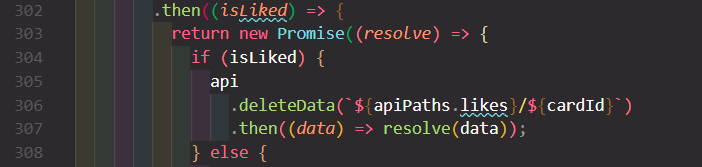
* **indent-rainbow** - purely visual, sets indentations in alternate semi-transparent colors.
* **Rainbow Brackets** - different colors for brackets of different depth.
* **100 Days of Code** - not very useful, but it keeps your coding stats. And there are milestones.
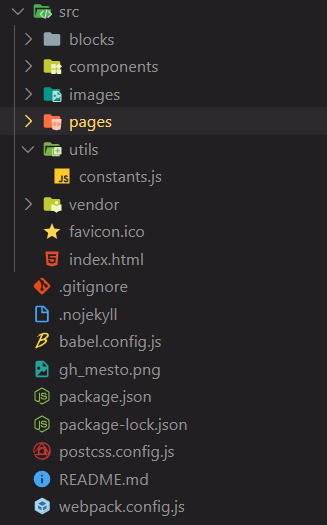
* **Material Icon Theme** - my favorite theme for filetype icons.
* There are also many color themes, check out *Atom One Dark Theme* or *One Dark Pro*, but the basic ones are also good.
---
# Shortcuts
There are so many keyboard shortcuts, that it's hard to count (you can also add your own combinations). Here are the most common ones I use (inside the editor window, those are for Windows version):
* **Ctrl + Right/Left** - go to next/previous word
* **Alt + Up/Down** - move line/selected block up/down
* **Shift + Alt + Up/Down** - copy line/selected block above/below
* **Ctrl + Backspace** - delete previous word
* **Shift + Del** - cut line/selected block
* **Shift + Tab** - decrease indentation of line/selected block
* **Ctrl + G** - go to anything (line, file, etc.)
* **Ctrl + P** - go to file
* **F2** - rename variable (change it everywhere in the document)
* **F12** - go to variable definition
* **Ctrl + /** - line comment
* **Shift + Alt + A** - block comment
* **Ctrl + D** - add the next match to the selection
* **Shift + Alt + F** - format document
* **Ctrl + Space** - show suggestions
* **Ctrl + Z** - toggle word wrap
* **Ctrl + `` ` ``** - open and go to terminal
* **Ctrl + 1/2/...** - go to first/second/... code panel
* **Alt + click** - multiple cursors
* **Ctrl + Alt + Shift + Up/Down** or **Holding Middle Button** - multiple cursors
* **Ctrl + Shift + V** - markdown preview
* **Ctrl + K** then **V** - markdown preview side-by-side
* **Alt + Click** on file in Explorer - open panels side-by-side
* **F1** or **Ctrl + Shift + P** - show all commands
> In editor window, you can select the code, then call **F1** and select *Emmet: Wrap with Abbreviation* to wrap the content in another element tag, for example. You can also add your own shortcut for that function.
---
# Emmet & code suggestions
[**Emmet**](https://code.visualstudio.com/docs/editor/emmet) is a powerful toolkit built in in VSCode, which will save you a lot of time. It allows you to write short code snippets, which magically converts to elements, keywords and properties. This is a big topic to cover, and I'm using only a fracture of it myself, so here's a few examples:
* **! + Tab** in a HTML file converts to:
```HTML
Document
```
* **ul.list>li.item{text$}*6 + Tab** in HTML:
```HTML
- text1
- text2
- text3
- text4
- text5
- text6
```
* **.quick + Tab** in HTML:
```HTML
```
* **gtc + Tab** in CSS, inside a selector:
```CSS
grid-template-columns: repeat();
```
* **fz20r + Tab** in CSS:
```CSS
font-size: 20rem;
```
* **bb + Tab** in CSS:
```CSS
border-bottom: 1px solid #000;
```
As you see, you just need to start typing something, and Emmet suggests what you may need.
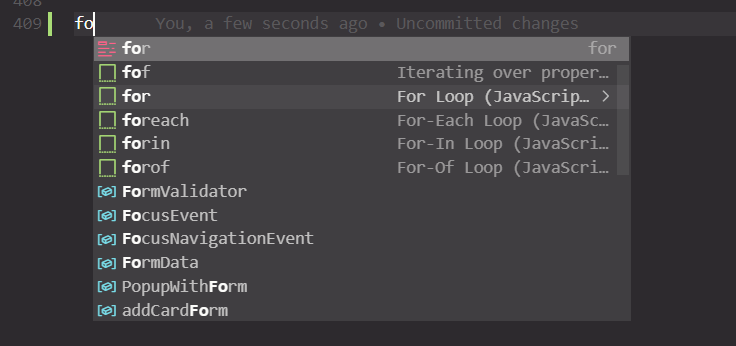
In JavaScript, you can also choose the suggestion by up/down arrows. For example, by typing **fo** you can instantly choose a for loop, in which you can quickly jump through arguments by pressing **Tab**.
```JavaScript
for (let index = 0; index < array.length; index++) {
const element = array[index];
}
```
Extensions like *JavaScript (ES6) snippets* I mentioned earlier add new suggestions to the list.
---
# GIT
The last thing I wanted to share are Git shortcuts. Sooner or later you may want to use it, and I recommend to learn using it from a command line first (VSCode terminal). It does not hurt to learn a few Bash commands too for creating/moving/copying files and directories. (By the way, Bash also offers suggestions when you're starting to type something and pressing Tab.)
To type git commands faster, you can use aliases. There are git aliases, when you shorten a command to *git something*, but it's better to use Bash aliases, so we can shorten the *git* part, too. One of the ways to create them is to create a **.bashrc** file in your home directory, then add aliases directly to it. Here is my list:
```JSON
alias gst='git status'
alias gaa='git add .'
alias gcm='git commit -m'
alias gcmno='git commit --amend --no-edit'
alias gch='git checkout'
alias gchd='git checkout develop'
alias gchm='git checkout master'
alias gchb='git checkout -b'
alias gbr='git branch'
alias glo='git log --oneline'
```
So, instead of typing the whole command in the terminal, I type, for example, *glo*↵ to view the commits log. If you're not sure where your home directory is, type **echo $HOME**↵ in your VSCode terminal.
Also, if you want to change your home directory, you can use the following code in terminal (in Windows):
```BASH
setx HOME "C:\Path-to-your-projects\Projects"
```
after this you need to restart VSCode.
---
Additionally, check out [this blog post](https://dev.to/vtrpldn/vs-code-shortcuts-that-i-would-teach-myself-if-i-had-a-time-machine-with-limited-fuel-36md) about useful VSCode shortcuts and [Command Line Basics](https://dev.to/annajmcdougall/command-line-basics-how-to-find-your-way-around-your-computer-30h4)
---
This covers all I wanted to share today, I hope it was useful to you. Thank you for reading!
Background for the title picture by [Luca Campioni](https://unsplash.com/photos/AT3C0Ka_QcQ)